Link management
How to Change a Short Link’s Destination After Sharing It
Your email has already gone out. Here is how to change where its saved short link leads.
By GhostQR ·
A marketing email is already in hundreds of inboxes, but its button opens the wrong landing page. If the button uses a dynamic GhostQR short link, you can change the saved destination while leaving the shared address alone. Everyone who clicks the original link after the update has propagated is sent to the new page.
This only works for a dynamic link in an account or team workspace where you have editing access. A static QR code contains its destination inside the pattern, and GhostQR cannot take over a Bitly link, another provider's QR code, or a GhostQR link owned by someone else. For the QR version of this workflow, see how to edit a QR code after printing.
Example: one email, one link, one corrected destination
Imagine a fictional shop called Northstar Supply preparing a spring email. Its original campaign page is:
https://northstar.example/spring-preview?utm_source=newsletter&utm_medium=email&utm_campaign=spring_launchIn the GhostQR dynamic generator, choose a dynamic URL, enter that complete destination, name the record “Spring launch email”, and save it. GhostQR returns a short address such as https://ghqr.au/n0rth1. This name, destination domain, slug, company, and every result in this article are illustrative.
Copy the returned short URL using Copy. In the hypothetical email draft, use that address as the button link, then test it before scheduling the campaign. This example is fictional. Use the actual short URL returned in your account, not the sample address above; that sample has not been reserved for your campaign.
After the email is shared, the team discovers that the finished offer belongs athttps://northstar.example/spring. Add the same campaign parameters to the new page before saving it:
https://northstar.example/spring?utm_source=newsletter&utm_medium=email&utm_campaign=spring_launchUTM parameters belong to the saved destination. They are not stored separately by the short link, so editing from a tagged URL to an untagged URL drops them. Copy the required query string into the replacement destination and check it after the redirect. The original ghqr.au/n0rth1 address remains unchanged.
Change the destination in GhostQR
- Sign in and open Spring launch email from the dashboard.
- Confirm the displayed Current destination and short URL.
- Select Edit destination →.
- Paste the complete replacement address into New destination.
- Select Save, then open the original short URL in a fresh tab.
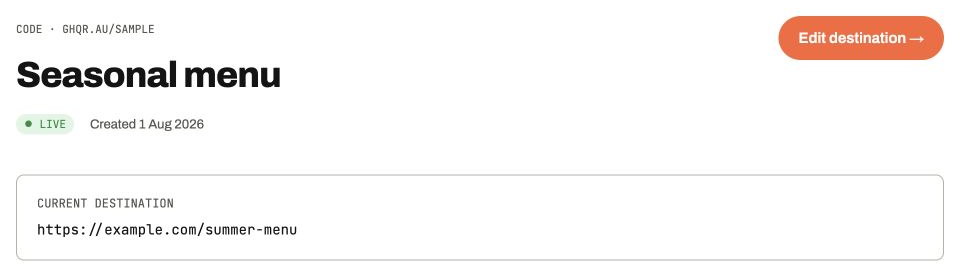
Product screenshot · illustrative sample data · select image to enlarge
The same edit control is used whether the short URL was shared in an email or encoded in a QR code. The record shown contains illustrative sample data.
- Current destination
- Check that you opened the intended dynamic record before changing it.
- Edit destination →
- Owners and editors can open the destination editor. Team viewers cannot edit.
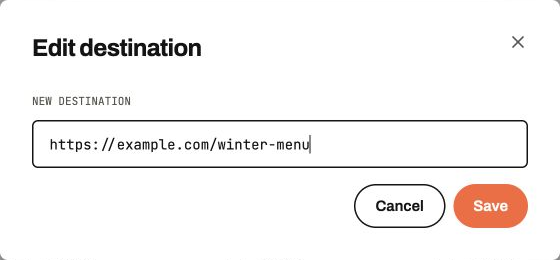
Product screenshot · illustrative sample data · select image to enlarge
Paste a complete http or https URL, including any UTM parameters you still need. The addresses in this screenshot are illustrative.
- New destination
- Open the new page directly first, then paste its complete address.
- Save
- Save the change without replacing the shared short URL.
GhostQR serves dynamic destinations with a temporary HTTP 302 redirect. That matters because browsers should keep checking the link instead of treating the first destination as permanent. The resolver is cached briefly at the edge, so allow about 30 seconds for a recently used link to update. Test again after that window if the old page appears immediately after saving. The HTTP standard describes the semantics of 302 Found.
Edit the record instead of deleting it
Do not delete the code and generate another one when the shared address must survive. Deleting a dynamic record permanently stops its ghqr.au link. A newly generated record receives another slug, so the button already sitting in recipients' inboxes still points at the deleted one. Editing changes the destination behind the existing slug and retains that record's activity history.
Creating a dynamic link requires a paid plan and uses one place in its dynamic-code allowance. Static codes are free and unlimited, but their encoded content cannot be repointed and they do not have GhostQR scan analytics. Check current plans and allowances before choosing the link type for a long-running campaign.
Decide whether channels should share reporting
The same GhostQR short URL can be placed behind an email button and inside a QR code. Both routes then contribute to the same code-level activity because both request the same slug. That is useful when you only need one combined total. It cannot tell you which requests came from the email and which came from the QR placement.
Create separate dynamic records when separate reporting matters, even if both initially open the same landing page. Give the email and QR destinations distinct UTM values too, then compare GhostQR's per-code activity with your site analytics. Read the scan analytics guide and the GA4 and UTM walkthrough for the limits of each measurement layer.
For Northstar Supply, the repair is complete when the original short URL opens the new spring page after the cache window and the browser address includes the intended UTM values. Keep that short URL in the sent email. Future destination changes happen on the same dashboard record.