GhostQR / practical guides
Can you edit a QR code after printing?
Yes, if it is a dynamic QR code. You change the destination behind its short link; the pattern already printed on your flyer stays the same.
First, check the link inside
Scan the code and inspect the URL preview before opening it. A GhostQR dynamic code contains a short ghqr.au link. A static code contains the destination itself, such as your menu URL.
GhostQR can manage dynamic codes saved in your own account or a team you can access. It cannot take control of a code created by another provider.
Change a GhostQR destination
Sign in and open your dynamic code from the dashboard. You need editing access in the selected workspace.
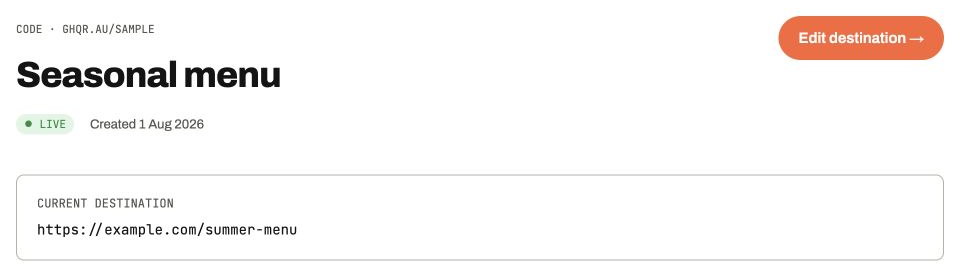
Product screenshot · illustrative sample data · select image to enlarge
Start with the correct code. In this example, the table signs currently open the summer menu.
- Current destination
- Check the address beneath the code name before making a change.
- Edit destination →
- Choose this button to open the destination editor. Team viewers do not see editing controls.
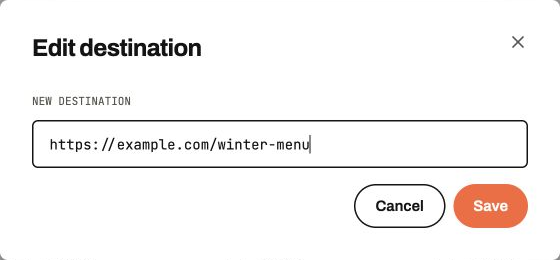
Product screenshot · illustrative sample data · select image to enlarge
Replace the address with the winter menu URL. The example.com addresses shown here are placeholders.
- New destination
- Paste the complete URL and check that it opens the intended page.
- Save, then scan
- Save the change and scan an existing printed sign. Allow about 30 seconds for a cached destination to update.
You keep the same printed pattern and short link. Changing the code's colour or logo in the dashboard does not alter anything already printed.
If your code is static
The encoded URL cannot be replaced in the existing pattern. If you control the destination website, you can update that page or configure a redirect there. That is a change to your website, not to the printed code.
If you do not control that URL, you need to create and distribute a replacement code. Choose a dynamic code for the replacement if future destination changes matter. Create a dynamic QR code.
Example: a seasonal menu
Print a dynamic code on your table signs that points to your summer menu. When the winter menu is ready, update the destination to its URL and scan a table sign to check it. The signs can stay in place.
Keep your code live and your account within its plan allowance. Paused or deleted codes do not keep redirecting to the saved destination. Use scan analytics to see activity after the change.